


How to Check Which Version of Copilot You're Using in Microsoft 365
With Microsoft continuing to expand and evolve Copilot offerings, many users are unsure whether they are using the free Microsoft 365 Copilot Chat experience or a licensed Microsoft 365 Copilot subscription. Fortunately, it's easy to check directly from the Microsoft 365 Copilot app.
Step 1: Open Microsoft 365 Copilot
Navigate to: https://m365.cloud.microsoft
Sign in with your Microsoft 365 work or school account.
On the home page, scroll to the bottom to view your account.
Microsoft 365 Copilot Chat - If you are using the included Copilot Chat experience, you'll typically see
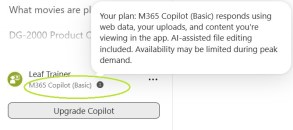
Microsoft 365 Copilot - If your organization has assigned a Microsoft 365 Copilot license, you'll see

This version can securely access information you already have permission to view across Microsoft 365, including Outlook, Teams, SharePoint, OneDrive, and more, helping you work with your organizational content.
Step 3: Test a Work Data Prompt
Another quick way to identify your version is to ask:
Summarize emails related to Project X from the last two weeks.
If Copilot can access and summarize your emails or documents, you likely have a Microsoft 365 Copilot license. If it indicates it cannot access organizational data, you're using Microsoft 365 Copilot Chat.
Why It Matters
Understanding which version you're using helps set expectations around available features:
- Microsoft 365 Copilot Chat
- Included with many Microsoft 365 subscriptions
- Web-grounded AI assistance
- Limited access to organizational content
- Microsoft 365 Copilot
- Requires an additional license
- Accesses Microsoft Graph data
- Can work with emails, meetings, files, chats, and documents
- Provides deeper integration across Microsoft 365 apps
Leaf Learning 365 Tip: As Microsoft continues to introduce new Copilot capabilities, checking your license status is a quick way to understand which AI features are available and how they can support your daily work.